Skip to content

InspectoClick UI. Jump to source. Let AI fix it.

Start from the browser, capture exact component context, send it to your AI assistant or MCP agent, trigger custom workflows, and track progress without losing the page.

Inspecto Logo

See It in Action

Why Inspecto?

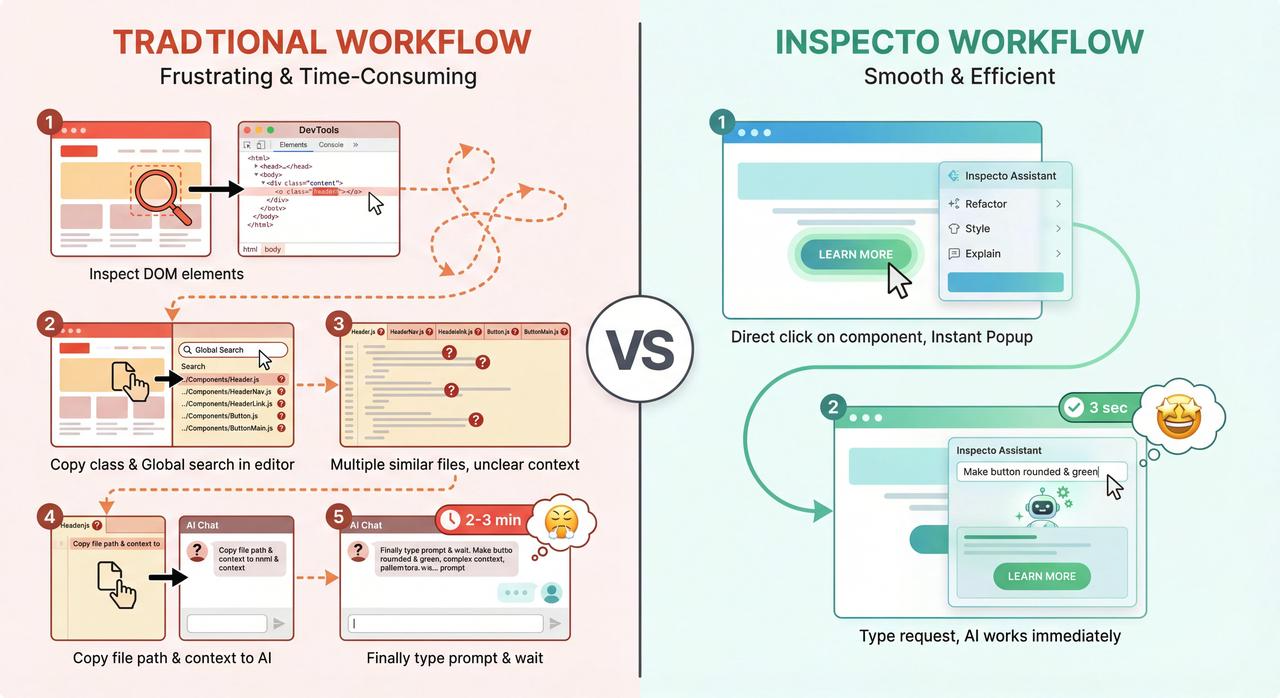
Traditional vs Inspecto Workflow

Common Frontend Fixes

Fix a visible UI bug

Click the broken component, send exact source context to your assistant, and avoid explaining where the code lives.

Apply design review comments

Annotate several elements in one pass, add per-element notes, then create one task for the agent.

Let an MCP agent work in the background

Create a browser task, let the agent claim it, and watch replies, progress, and completion in the sidebar.

Run a custom workflow

Add a Deploy Preview or Review & PR button through prompts.json, then let the agent use its own skills, MCP servers, and tools.
See the Core Workflows

1 Component + AIOpen SourceBrowserAI AssistantSource code
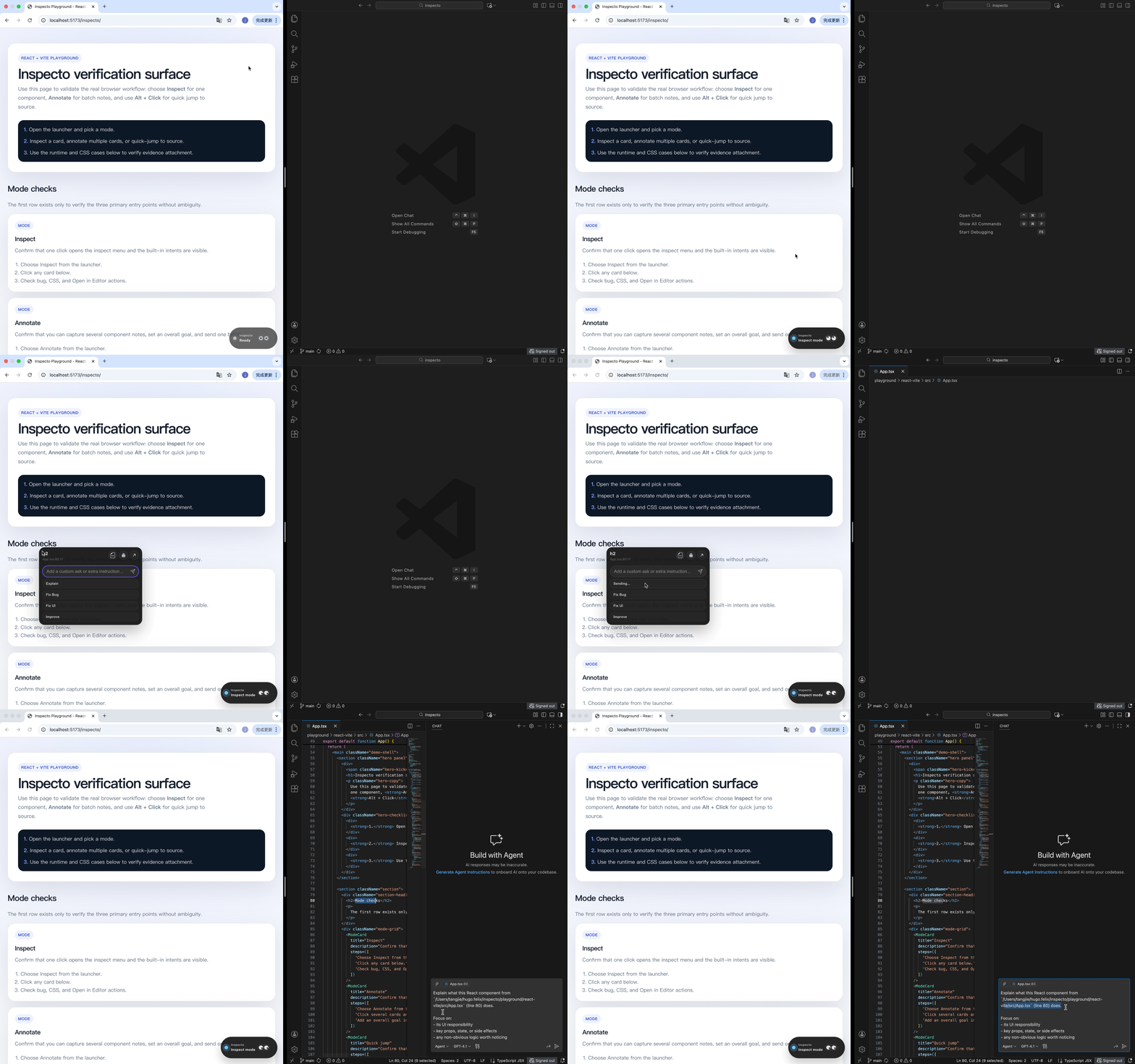
Inspect mode workflow

Inspect mode

Click a component, attach exact context, and hand it to your AI assistant.
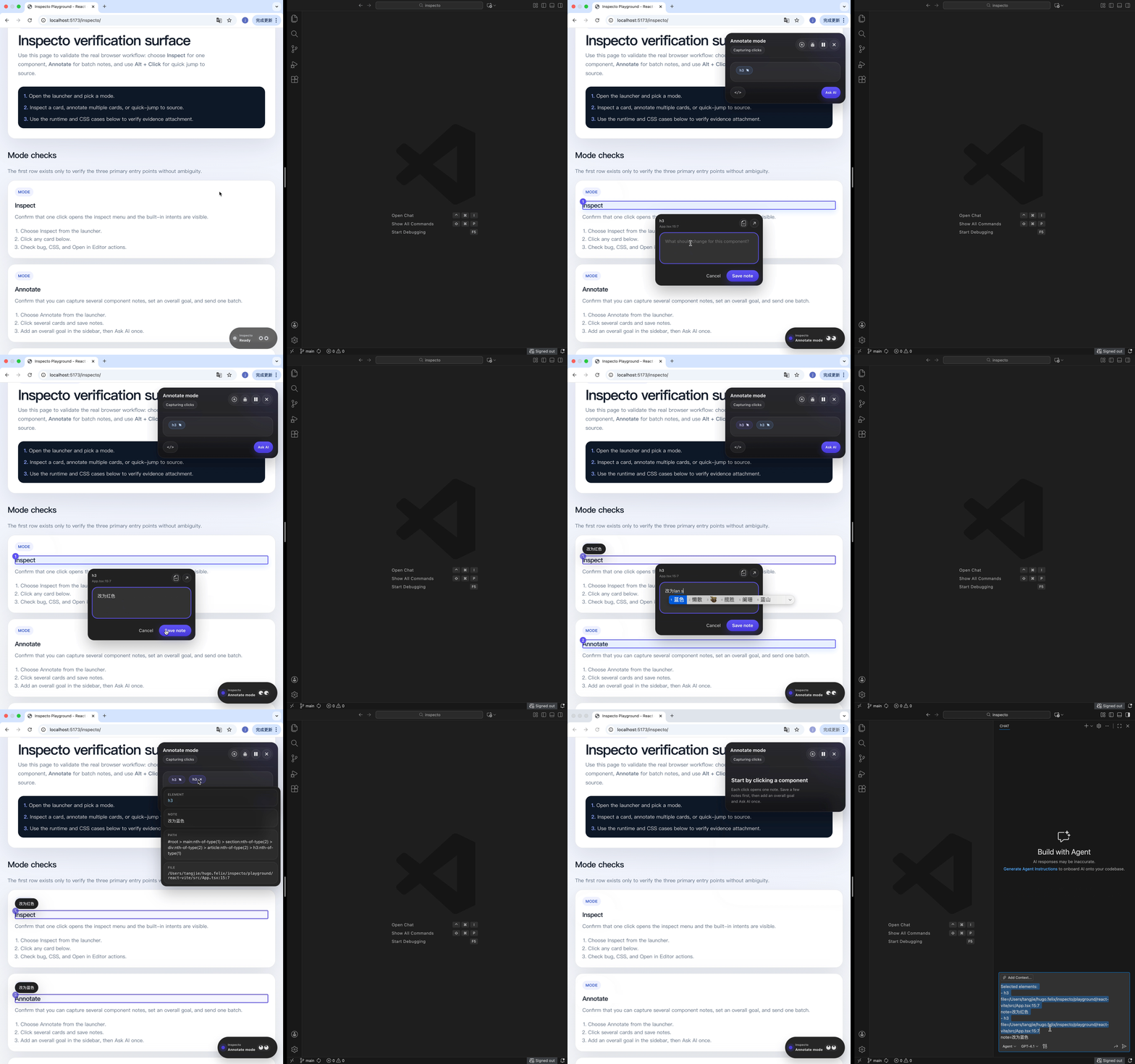
Annotate mode workflow

Annotate mode

Collect multiple UI notes, create one task, and track agent progress in the browser.
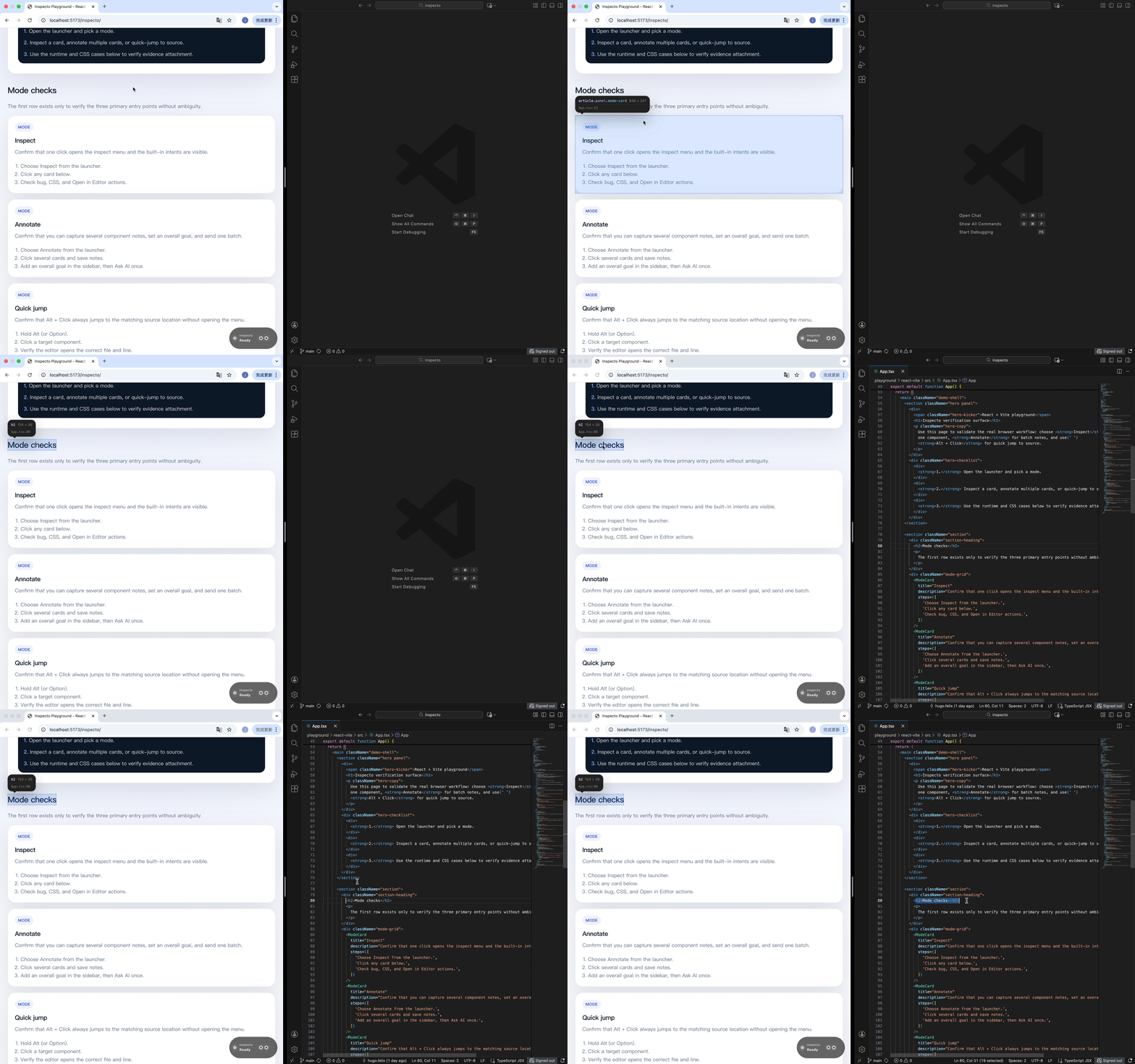
Quick jump workflow

Quick jump

Hold Alt + Click on any element to instantly open the exact source location, skipping manual search.
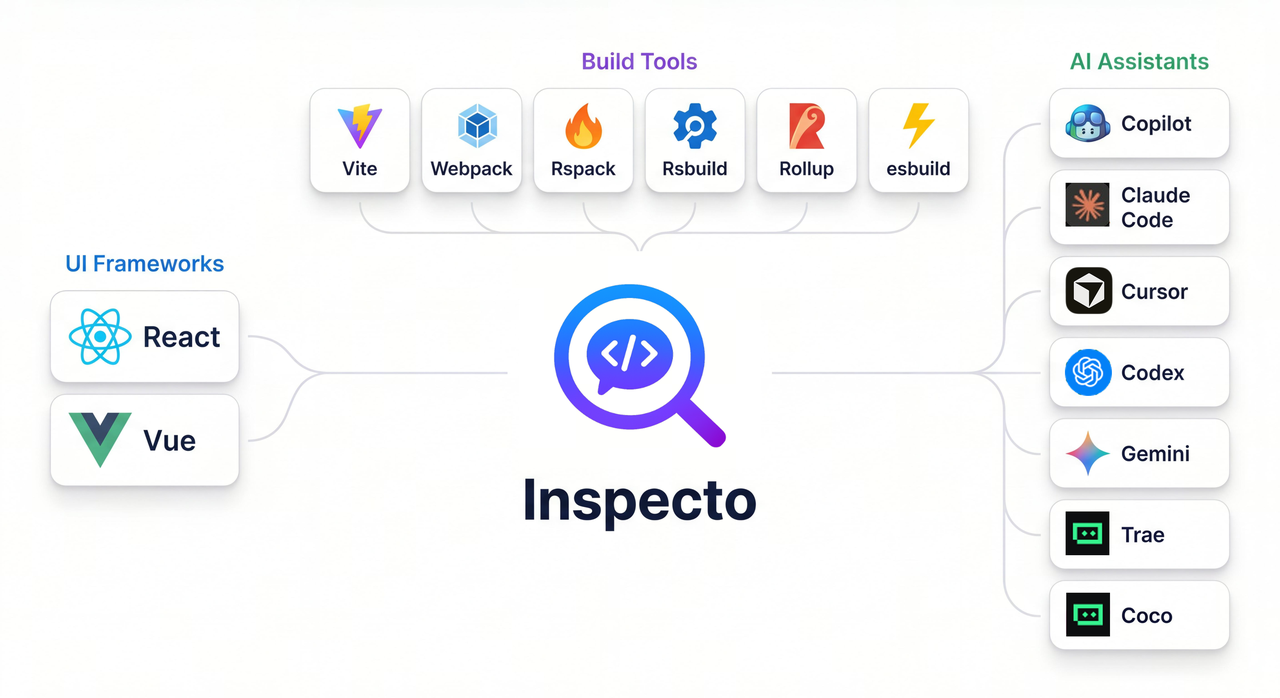
Ecosystem

Inspecto Ecosystem and Integrations

Use Inspecto when...

  • the issue is already visible in the browser
  • you want the shortest path to source or AI
  • you want an agent to process UI annotations while you follow progress in the browser
  • you want project-specific workflow buttons such as deploy, review, PR, or release
  • you are tired of copying snippets between tools
  • you need accurate context without manual lookup

What should I choose first?

  1. Pick the editor / AI assistant you already use, such as VS Code + Copilot, Cursor, or Trae.
  2. Run one install command from your project root. You do not need to understand MCP or IDE routes first.
  3. Restart your dev server and open the browser, then use Inspect mode, Annotate mode, or Alt + Click.

Only want source jump or a standalone MCP agent? See Getting Started for the specific path.

Released under the MIT License.